044 —Workflow
Diffing two SFTP trees: when 'nothing changed' isn't true
A Saturday-morning ticket. The client swears nothing changed since Friday. Three shell commands that find the one file that actually did, and the diff to paste back.
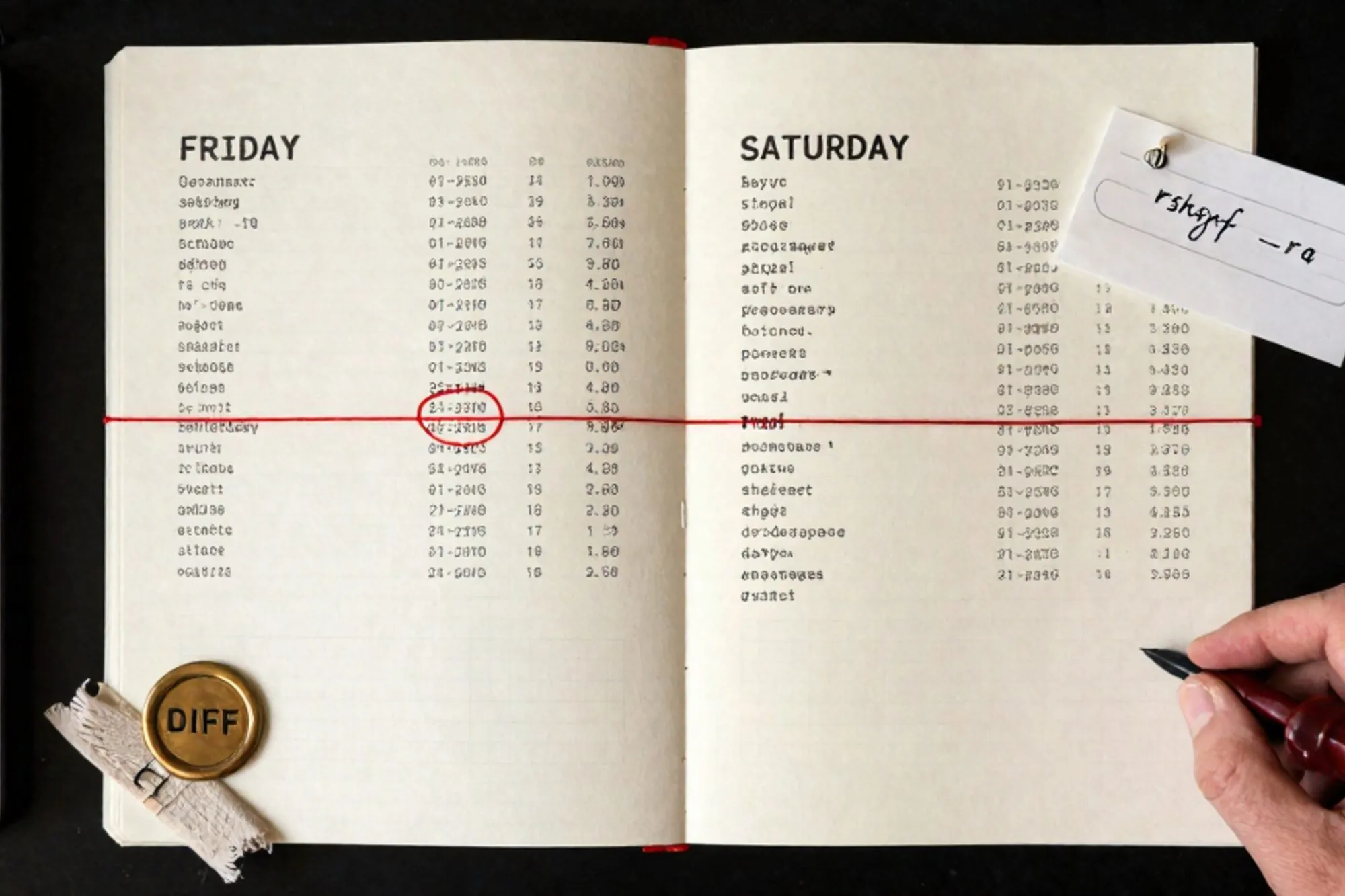
A Dutch agency we work with got the message on Saturday at 09:14: the contact form on a nine-year-old WordPress site started returning a 500 on submit. The client, a regional logistics firm, was firm about one thing. Nobody had touched anything since Friday afternoon. "We literally went home at 17:00 and didn't open the laptop." The dev on call had to either believe that or prove it wrong before lunch.
This is the most common shape of an SFTP support call. Something works on Friday. Something is broken on Monday. The client swears nothing changed. The truth is almost always a small file nobody remembers writing. The job is finding it without a Git history, without a deploy log, and without burning the client's morning.
The mtime lie
The first instinct on any unix shell is find . -mtime -3. On an FTP-managed site, it lies to you about half the time. Most FTP and SFTP clients (FileZilla, Cyberduck, Transmit) preserve the original modification time when they upload, so a file uploaded yesterday can carry an mtime from 2019. Worse, some plugin updaters reset mtime to match the upstream zip.
The field that doesn't lie is ctime (inode change time on linux), which is updated every time the inode itself is rewritten, including when the file is replaced. Most FTP servers cannot set ctime from the client side because it isn't an exposed metadata field.
find . -type f -ctime -3 -printf '%T@ %p\n' | sort -nThis will surface anything whose inode changed in the last 72 hours, sorted by mtime. On a normal WordPress install that should be a short list: maybe a cache directory, maybe a session file, maybe nothing at all. A single unexpected hit in wp-content/plugins/ or at the docroot is usually the answer.
The catch: ctime resets if anyone has done a chmod or chown on a tree, which managed hosts sometimes do during a nightly sweep. Look at the spread of timestamps. If the entire wp-content/uploads tree shares the same ctime to the second, that was a bulk operation, not a file edit.
Building a baseline
If you work with a site for any length of time, the cheapest insurance you can buy yourself is a checksum manifest. Once a week, on a cron or by hand:
cd /var/www/clientsite
find . -type f \
  -not -path './wp-content/cache/*' \
  -not -path './wp-content/uploads/*' \
  -exec md5sum {} \; \
  | sort -k 2 > ~/baselines/clientsite-2026-05-23.md5
The file is 2-3 MB for a typical WordPress install. When the Saturday ticket comes in, you mirror the current site to /tmp/audit, run the same command against it, and then:
diff ~/baselines/clientsite-2026-05-23.md5 ~/audit/clientsite-now.md5Every line on the left that doesn't have an exact match on the right is a file that changed, was deleted, or was added. The diff for a real "nothing happened" incident is usually one to six lines long, which is exactly the size of evidence you can paste into a Basecamp reply.
Two trees, one rsync dry-run
When you don't have a baseline, you compare against the closest thing you do have: your last local pull, the staging copy, or a backup tarball from your host. rsync in dry-run mode with itemized changes is the fastest way to see the delta.
rsync -avn --itemize-changes --delete \
  --exclude='wp-content/cache/' \
  --exclude='wp-content/uploads/' \
  ./local-friday-pull/ \
  sftp-user@host:/var/www/clientsite/
The interesting column is the leftmost flag block. >f.st.... means a file would be sent because it's newer on the source. *deleting means a file present locally is missing on the remote. The pattern you want to see is short. If rsync wants to push back hundreds of files, that's a permission or umask drift; if it wants to push back two, you have your answer.
Note the n in -avn. That's dry-run. Without it, rsync will happily overwrite the live site with your stale Friday copy, which is the second-worst Saturday outcome.
Where the change actually lives
Once the diff is in front of you, eighty percent of the time it lives in one of five places.
.htaccessat the docroot, especially after a security plugin re-writes its own block.wp-config.php, where someone bumpedWP_DEBUGor added a constant.wp-content/plugins/<name>/for an auto-updated plugin (auto-updates have been on by default since WP 5.5).wp-content/mu-plugins/, a folder most clients don't know exists and many hosts inject into.- A theme's
functions.phpthat a "marketing person with FTP access" edited at 16:58 on Friday.
None of this requires Git or a deploy pipeline. It requires knowing where to look, having a baseline you trust, and a diff you can hand the client.
The MySQL side of the same question
Filesystem diffs only tell you half the story. The other half lives in wp_options, wp_postmeta, and the cron table. A broken contact form is just as likely to be a plugin that got auto-deactivated as it is a file change. Worth a check:
SELECT option_name, option_value
FROM wp_options
WHERE option_name IN ('active_plugins', 'cron', 'siteurl', 'home');
Compare against your last known-good export. If active_plugins lost an entry between Friday and Saturday, somebody (or something) deactivated it. WP-CLI has the cleanest read: wp option get active_plugins --format=json.
What we ended up building
When we built Pier for our own legacy site work, this Saturday-morning scene is the one we kept hitting. The way we ended up handling it was to snapshot the SFTP tree and the database on connect, then show every subsequent change in a version history alongside the file's previous content. The same view exists for the MySQL editor, so a deactivated plugin or a flipped siteurl surfaces the same way a touched .htaccess does. The diff lives next to the undo button, which is the order you want them in at 09:14 on a Saturday.
The smallest thing to do today
Open the SFTP root of one site you support. Run the md5 manifest command above, redirect it to a baseline file, drop the file in a folder called baselines/. Cost: about ninety seconds and 3 MB of disk. The next time a client tells you nothing changed since Friday, you'll have something to diff against, and the conversation will be twelve minutes long instead of two hours.
— Questions —
Why doesn't mtime reliably show recently changed files over FTP?
Most FTP and SFTP clients preserve the source file's original mtime on upload, so a file uploaded yesterday can carry a timestamp from years ago. Use ctime on linux for the truth.
How big is a typical md5 baseline file for WordPress?
With cache and uploads excluded, expect 2-3 MB on disk and roughly 1,200 to 4,000 lines, depending on how many plugins and language files are installed.
Can rsync compare two remote SFTP servers directly?
Not natively. Mirror both to local copies first (lftp mirror is fastest) and then run rsync --dry-run between the two local trees.
What if the site is already in Git?
Then git status and git diff do the same job in one command. This playbook is for the much more common case where a legacy site has no version control at all.